Flowbox Management
Overview
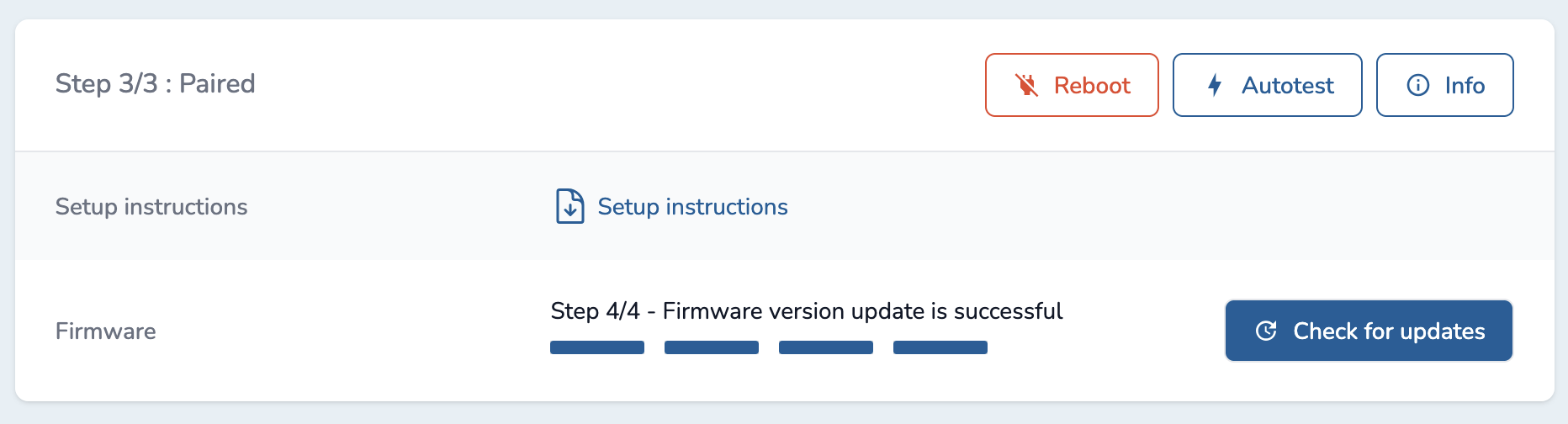
Once you are on a given Zone and click on the Flowbox tab, you will see a Device section, as below:
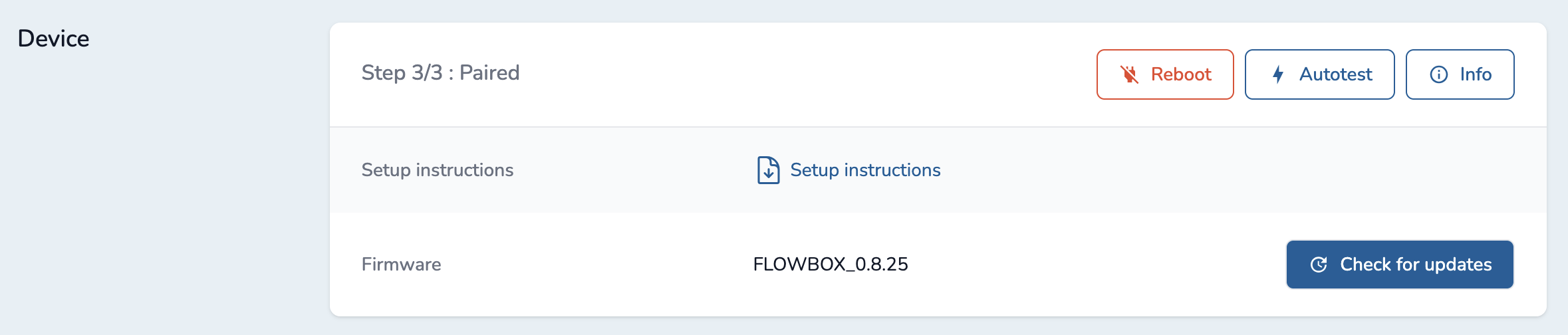
This section will provide details about the Flowbox as a device :
- Step X/3 will inform you about pairing status of the Flowbox.
- Reboot button will send a reboot order to the flowbox so that it restarts. Button is active only once the Flowbox is paired.
- Autotest button will provide you results of the latest available Autotest run on the Flowbox. Button is active only once the Flowbox is paired.
- Pair button will allow you to validate or reject Flowbox pairing. Button is active only once the Flowbox is available for pairing.
- Info button will provide you configuration information about the Flowbox (Flowbox version, network configuration, etc). Button is visible only once the Flowbox is paired.
- Setup Instructions will provide you a PDF file with all required information to have for pairing. Related documentation will also appear depending on the pairing status of the Flowbox.
- Firmware will provide you the version of the firmwared used by the Flowbox once paired.
- Check for updates button will allow you to upgrade your firmware if a newer version is available.
Step X/3
Possible pairing status of the Flowbox:
- Step 1/3 : Waiting for operator ; the Flowbox has been created on the application side but pairing process has not started.
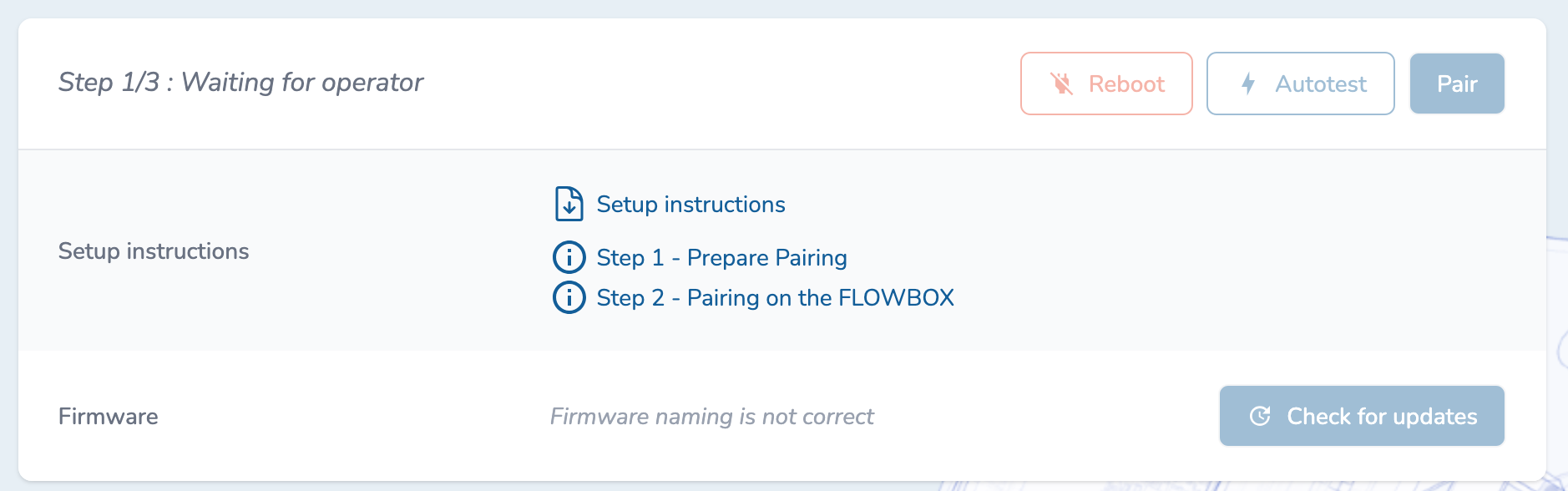
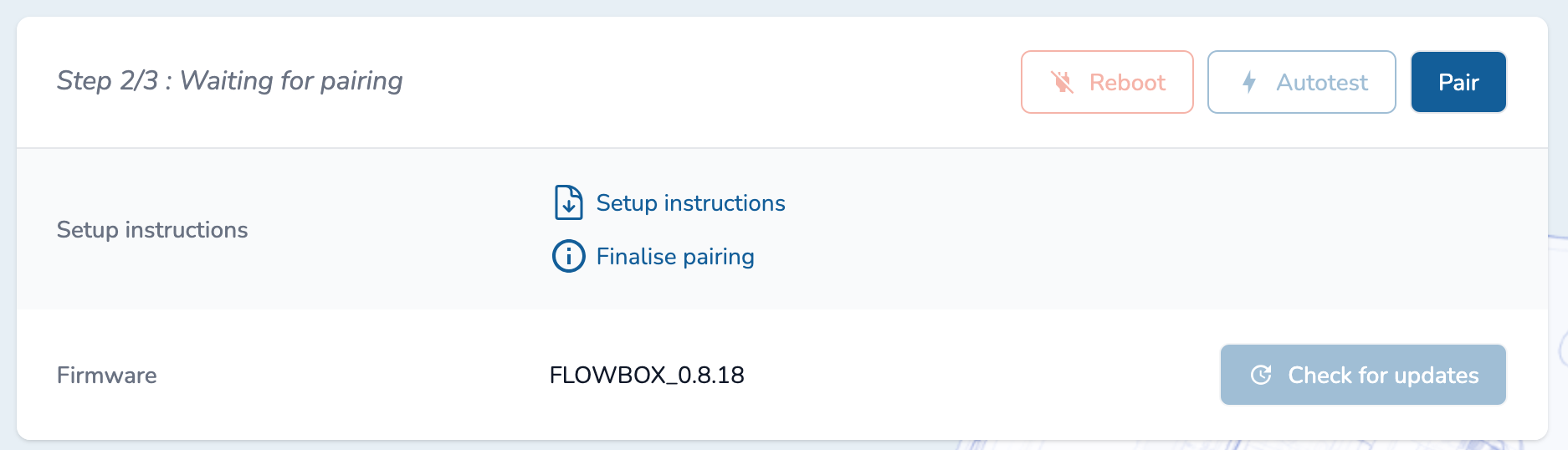
- Step 2/3 : Waiting for pairing ; the Flowbox has been configured on device side and is waiting for pairing validation.
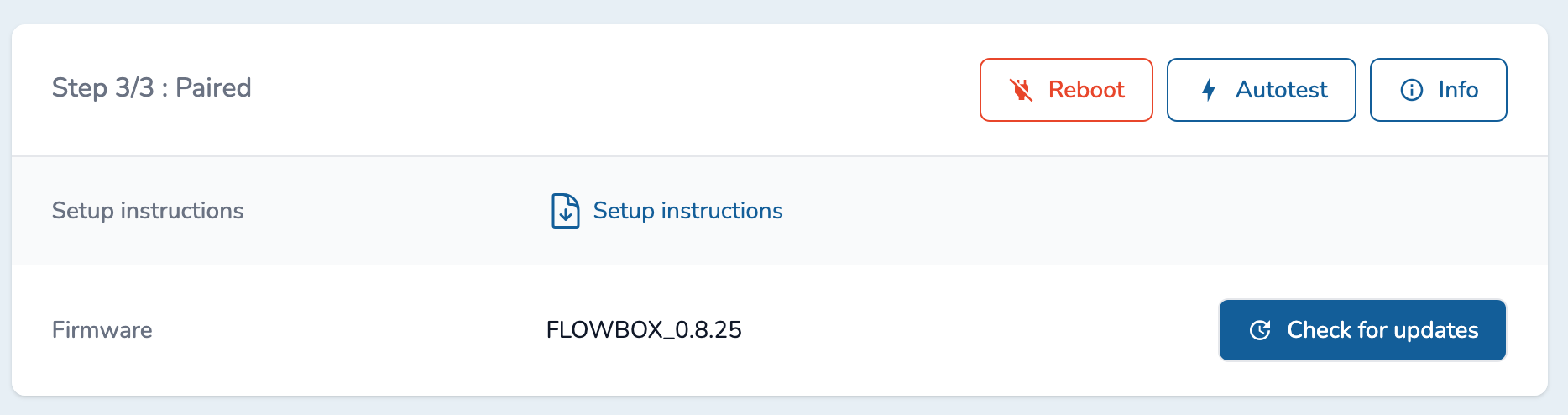
- Step 3/3 : Paired - flowbox pairing process is finalised
Reboot
If your Flowbox is having some strange behaviour, you may restart it from the WebApp.
A confirmation will be asked before the order is sent to the Flowbox.
Reboot will only be applied if the Flowbox is connected to the platform.
Auto-test
When the Flowbox is powered up, an auto-test is run. It will diagnose if the Flowbox and its main components (WiFi, Ethernet, Flowmeter, Valve, Temperature Sensor) are working properly.
Results may be:
- "All tests succeded": all components could be tested and are working as expected.
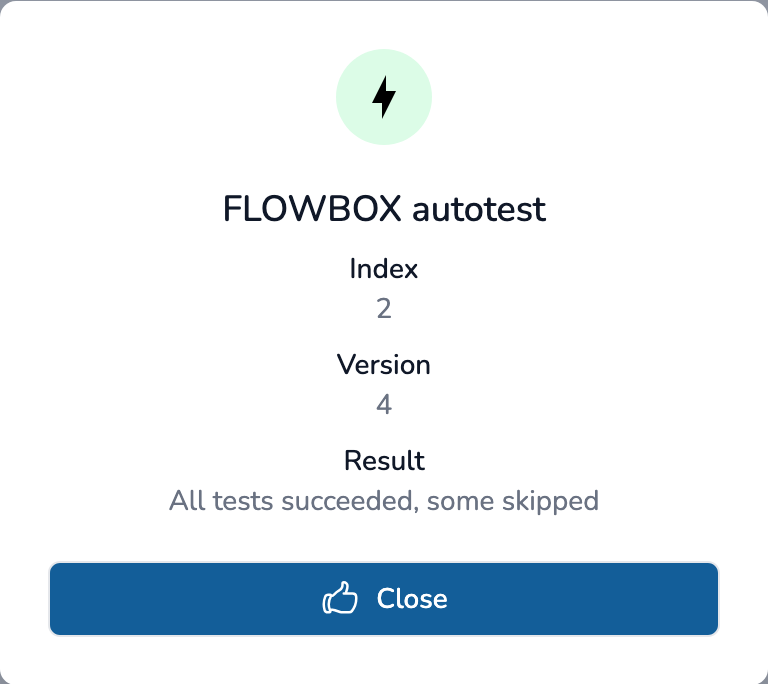
- "All tests succeded, some skipped": all components have been tested but for some, they are supposed to work as expected. For example, if there is no water flow during the autotest, we can detect the flowmeter but as there is no flow, we cannot validate if it works or not.
- "Failures", with details on the failing component.
Index is the number of the autotest run on the device. So here, 2 autotest were run on the given Flowbox.
Version is the version of the autotest run on the device. It will allow Flowbox support team to know if the Flowbox run the latest available autotest or a previous version.
Pair
If Flowbox is in status "Step 2/3 - Waiting for pairing", the "Pair" button is active and allows to validate or reject the pairing of the Flowbox.
Otherwise the button is disabled or hidden.
Info
This button is displayed only when your Flowbox has the status : "Step 3/3 - Paired"
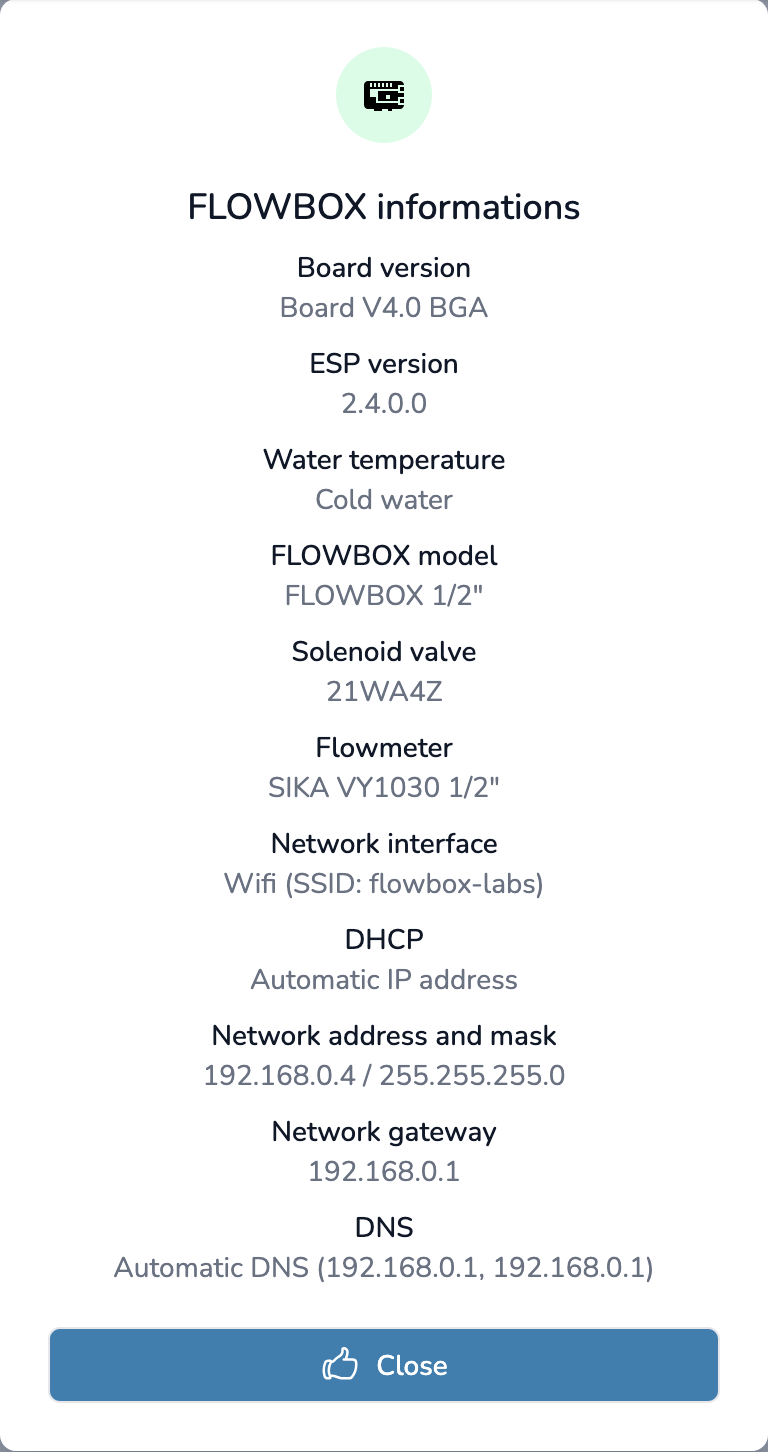
It will display most information of the Flowbox to ease support:
- Flowbox serial number
- Location information
- Flowbox model
- Water network type
- Components model or size (Flowmeter, Valve, etc)
- Network configuration
Firmware
Firmware version
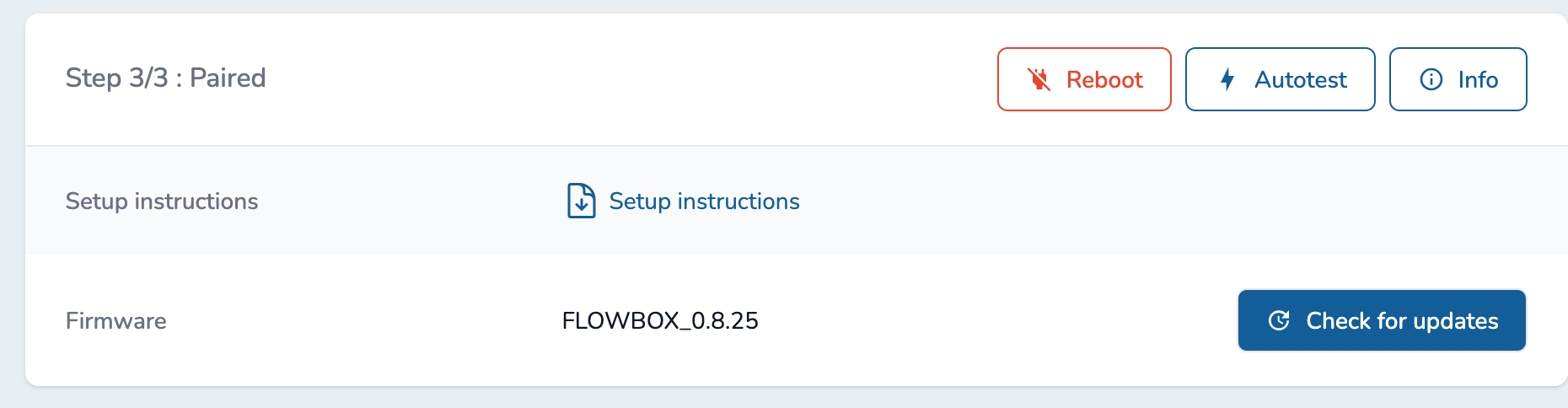
You will see the version of the firmware used on the Flowbow.
In the example below, the flowbox use firmware version 0.8.25.
Firmware upgrade
You may be asked by the support team to upgrade your firmware.
When asked, click on Check for updates
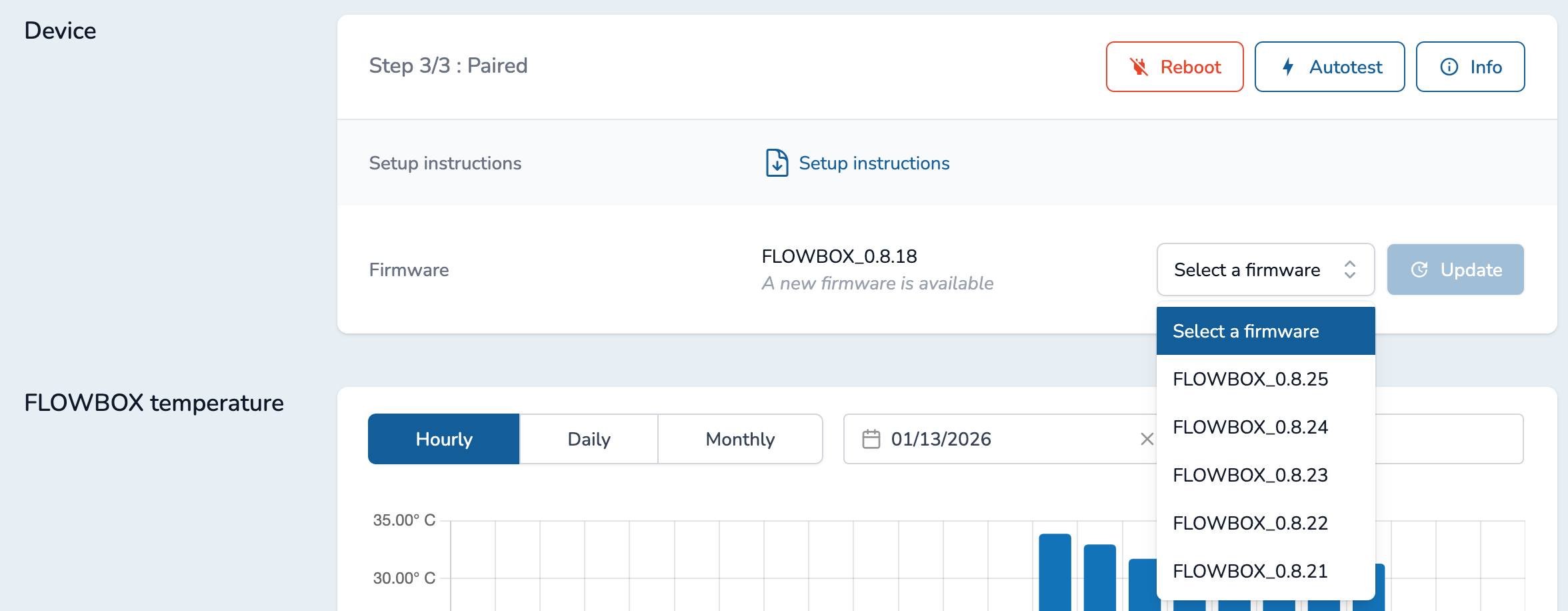
and select the expected version from the list. Then click on Update.
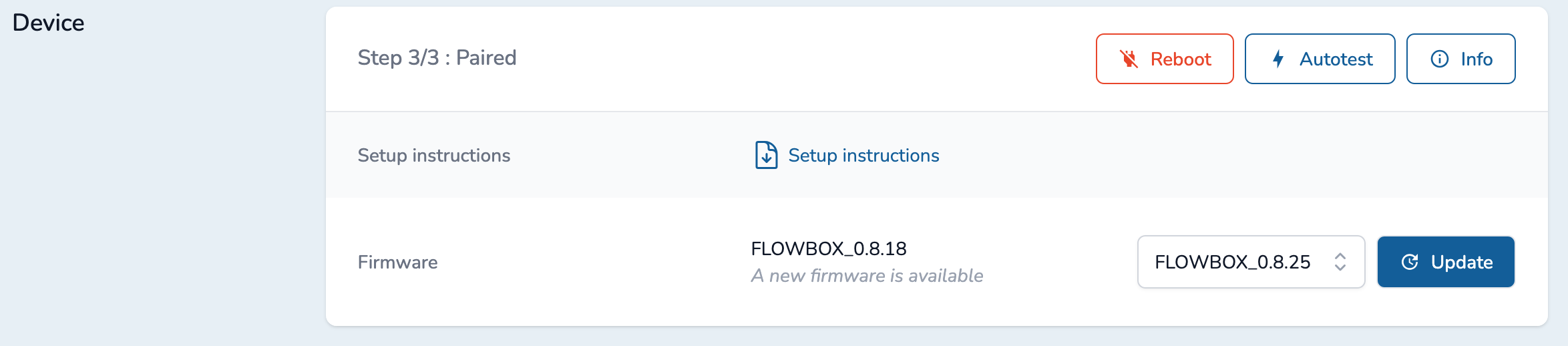
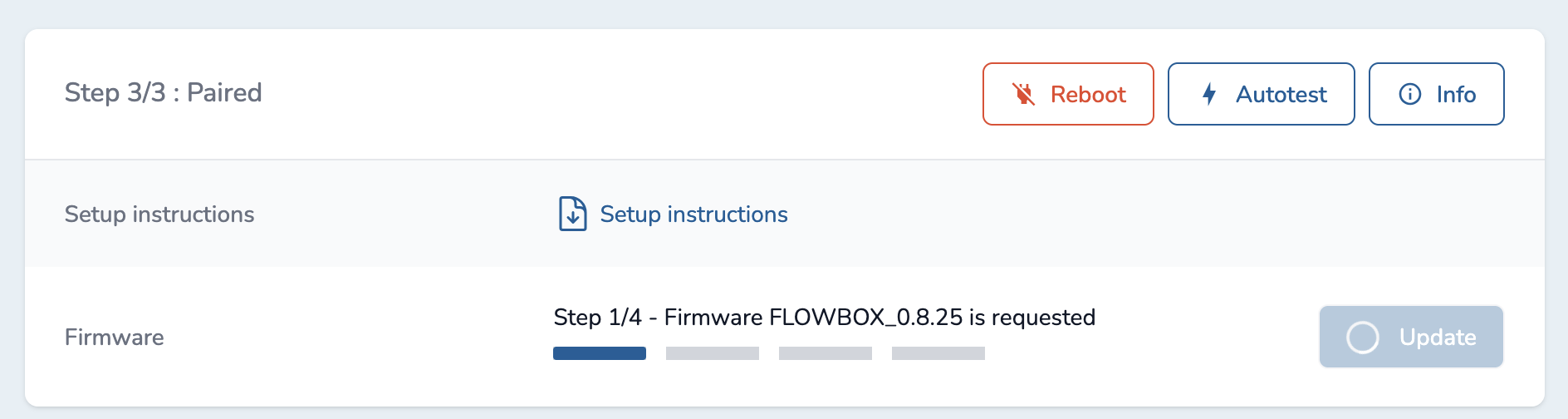
Firmware update is run through 4 steps :
- Step 1/4 : Firmware upgrade request
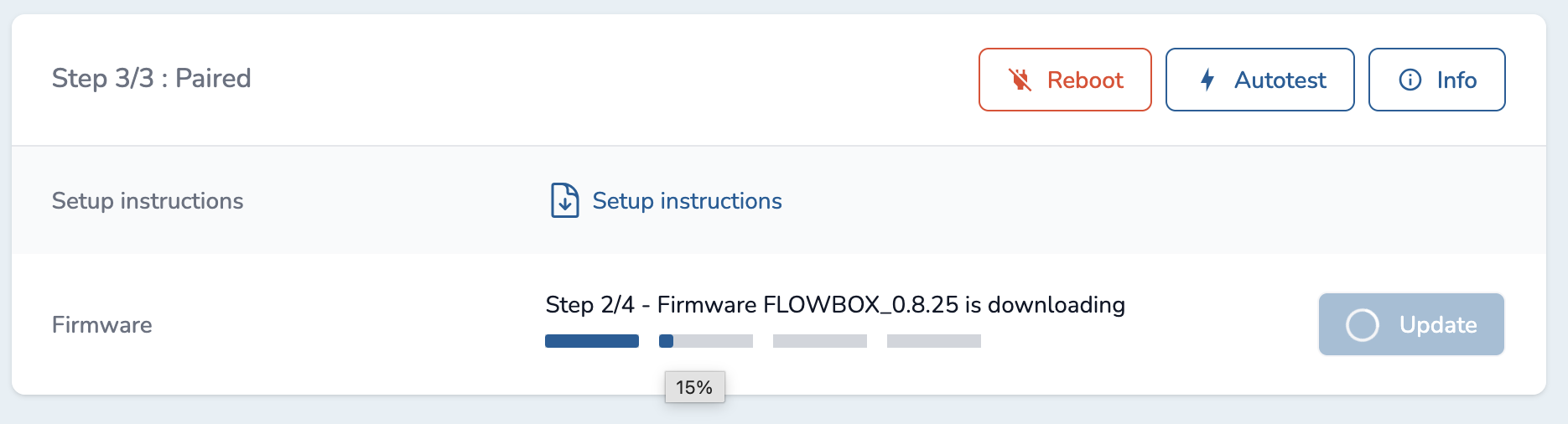
- Step 2/4 : Firmware is downloaded on the Flowbox
TIP
If you pass the mouse on the progres bar, you can see the its value (15% in the example above)
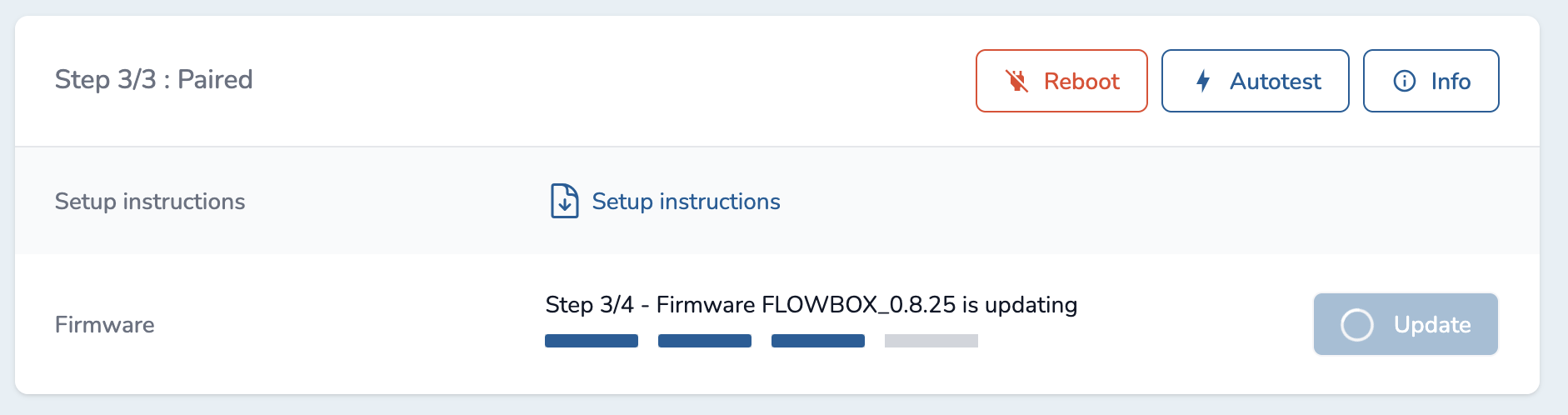
- Step 3/4 : Firmware upgrade is applied and the Flowbow will reboot
- Step 4/4 : Firmware upgrade successful
Firmware upgrade duration
If firmware upgrade is taking too much time, it may be cancelled from the platform side. In such cases, you will have to retry your firmware upgrade later. Your flowbox will continue to use its current firmware in the meantime.
Firmware follow-up
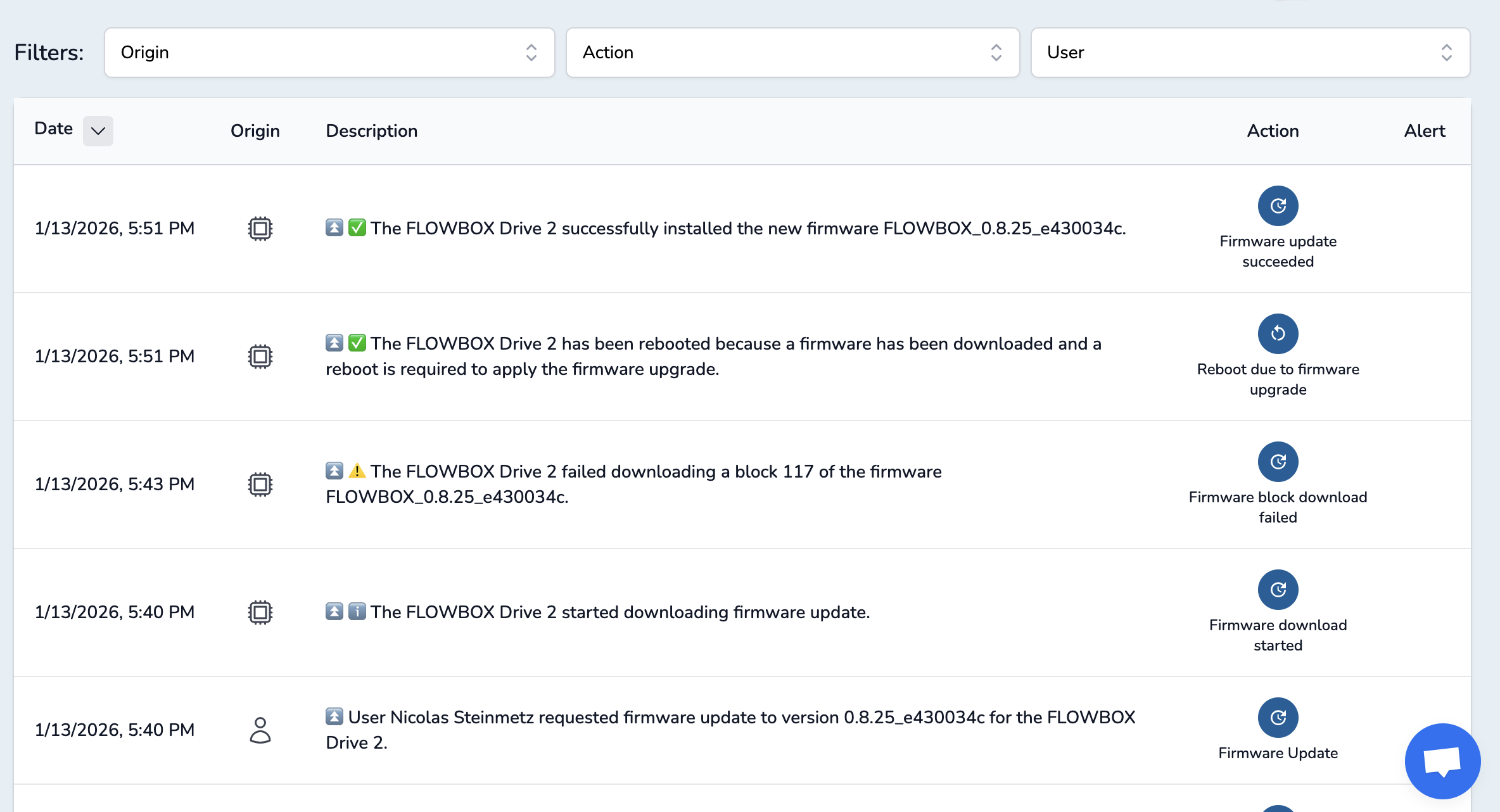
You can also follow firmware upgrade from the "Activities" tab where you will be able to see who and when the firmware upgrade was requested, firmware blocks download and final status (or failure if any)
TIP
In the "Action" field, you can filter with the firmware related actions to easily find your firmware upgrade.