Activities
Overview
Events are occurring during the usage of the Flowbox, it can be a valve opening or closing, feature activation or deactivation, firmware upgrade, etc. These events are recorded when they happen and can be viewed in the Activities section.
Some Events, such as passing an abnormal consumption threshold, can lead to alerts, which are also displayed in the Activities section, and available with custom filter and icons.
For Alerts, you will have two events which are related : the event which raised the alert and the event which closed the alert.
Events and Alerts are stored during one sliding year.
You can access Activites at different levels, depending on your role and the scope you want to observe:
- Zone: you will see all events and alerts related to a given zone
- Building: you will see all events and alerts related to a given building (that is to say all zones within this building)
- Site: you will see all events and alerts related to a given site (that is to say all buildings within this site)
- Customer: you will see all events and alerts related to a given customer (that is to say all sites within this customer)
All above levels are accessible to customer managers and site manages with the exception of Customer level which is only accessible to customer managers.
Usage
Once you click on the Activities tab on the top right corner of the page, you will be able to see all events and alerts related to the selected level.
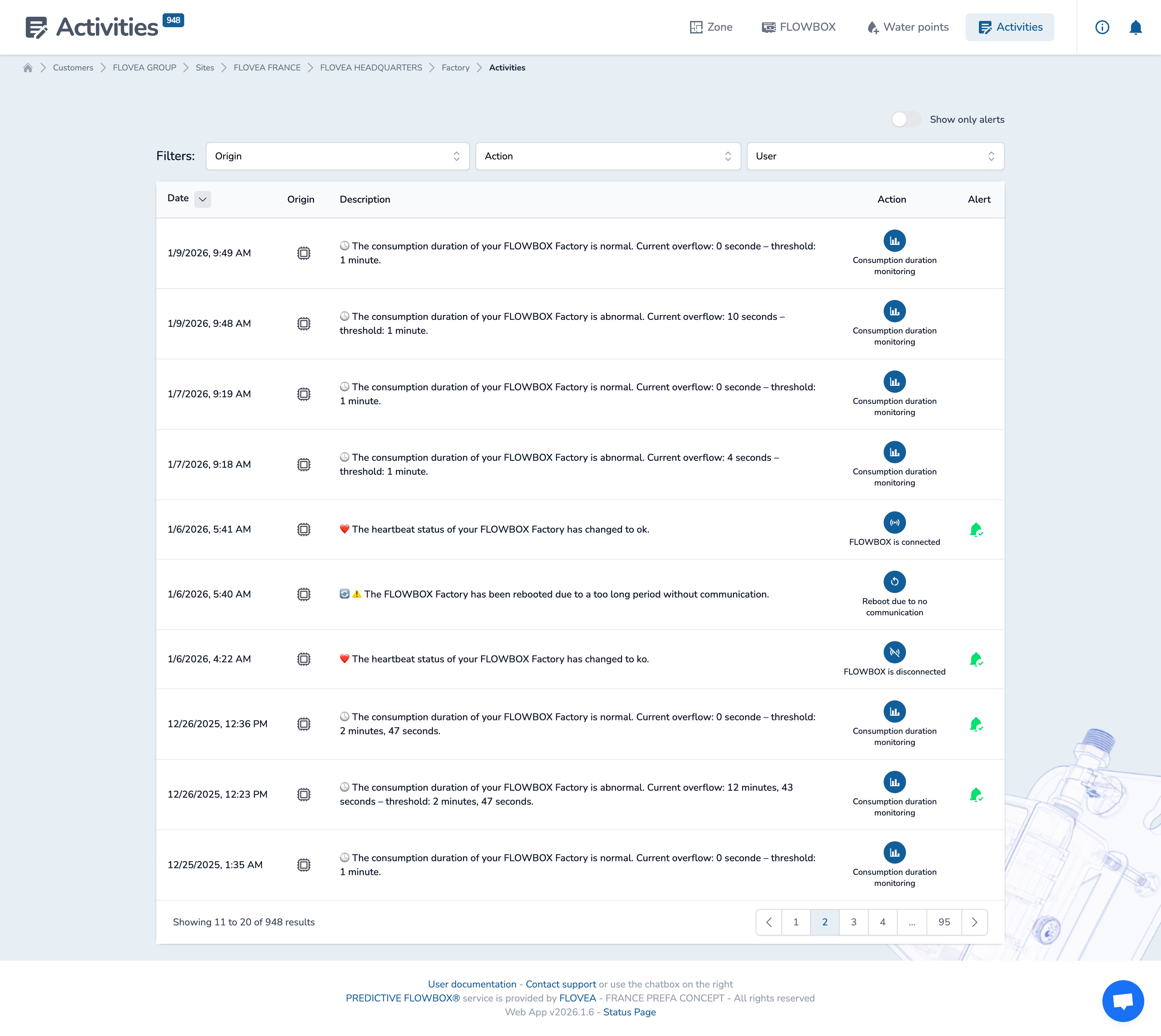
Each event or alert will be displayed in chronological and descenging order (from newest to latest) and will display:
- its date,
- its origin: being the Flowbox, the Platform (Backend) or a Human (User)
- its description: detailing what happened
- its action: related category of the event
- its alert status (if any): indicating if the event is opened or closed
To see only Alerts, click on the toggle "Show only alerts"
You can filter by Origin, Action and User in a cumulative way to narrow your search. For example, you can filter to see all valve openings globally or triggered by a given user.
On-going alerts are marked with a red bell with an exclamation mark. Closed alerts are marked with a green bell with a check mark.